

My Adobe Camera Raw Post-Production Workflow
A decision-gated approach to validating capture quality, not rescuing it
My post-production workflow is built around a single premise: post-processing should confirm that an image deserves to exist, not persuade it to. Every stage is designed to reduce optionality, surface failure early, and prevent effort being spent on files that cannot ultimately support it.
This is not a workflow optimised for throughput. It is optimised for restraint.
File management and context: Adobe Bridge as the control layer
All of this work happens inside Adobe Bridge, which I use as my file browser and control surface. This matters, because Bridge encourages decisive file-level actions rather than image-by-image indulgence. The Review tool lives here, and that is where most images die.
I don’t use Collections. Each photoshoot is downloaded to a dated folder e.g. 20260129_Description.
Camera Raw is an editing environment. Bridge is where judgement is enforced.
First-pass rejection: eliminating obvious failures before emotion sets in.
The first action after a shoot is a fast scroll through the session in Bridge using the Review tool, making bulk deletions. This pass happens before any image is opened in Adobe Camera Raw.
Images are rejected if they are
- not sharp in critical elements (typically eyes or primary subject detail),
- show motion blur that does not contribute to the image,
- suffer from broken or weak composition,
- lose key elements to framing,
- would require excessive cropping to function, or
- contain lighting or scene elements that undermine the image beyond simple correction.
Anything that fails here is deleted outright. These files are never opened in ACR. This step exists specifically to prevent sunk-cost bias from forming, i.e. wasting time is frustrating for me.
Second-pass inspection: tightening standards under closer scrutiny.
Images that survive the first pass are then opened one at a time, in sequence, for closer inspection.
- If an image fails any of the same criteria under closer viewing, it is deleted immediately.
- If it is marginal but potentially viable, it is rated at three stars and set aside.
- If it passes technically but is aesthetically uncertain, it receives four stars and is allowed into post as a test.
- If it clearly works both technically and aesthetically, it receives five stars and proceeds confidently.
These star ratings are not judgments of artistic merit. They exist purely to control effort allocation.
Testing the file in post: probing behaviour, not committing yet.
Only four- and five-star images are opened for post-production testing.
I begin with AUTO for light and colour—not because I intend to keep it, but because it acts as a stress test. AUTO quickly reveals how the file behaves when pushed and exposes weaknesses early.
From there, adjustments are manual. Whites are usually pulled back first, as AUTO tends to push them too aggressively, often oversaturating colours such as greens in grass. Overall exposure is then lifted with control. Tint is checked carefully, as AUTO often biases too far toward green for my preferences.
At this stage, the goal is not to finish the image. It is to confirm that the file responds cleanly and predictably to basic tonal and colour correction. If it doesn’t, it fails here.
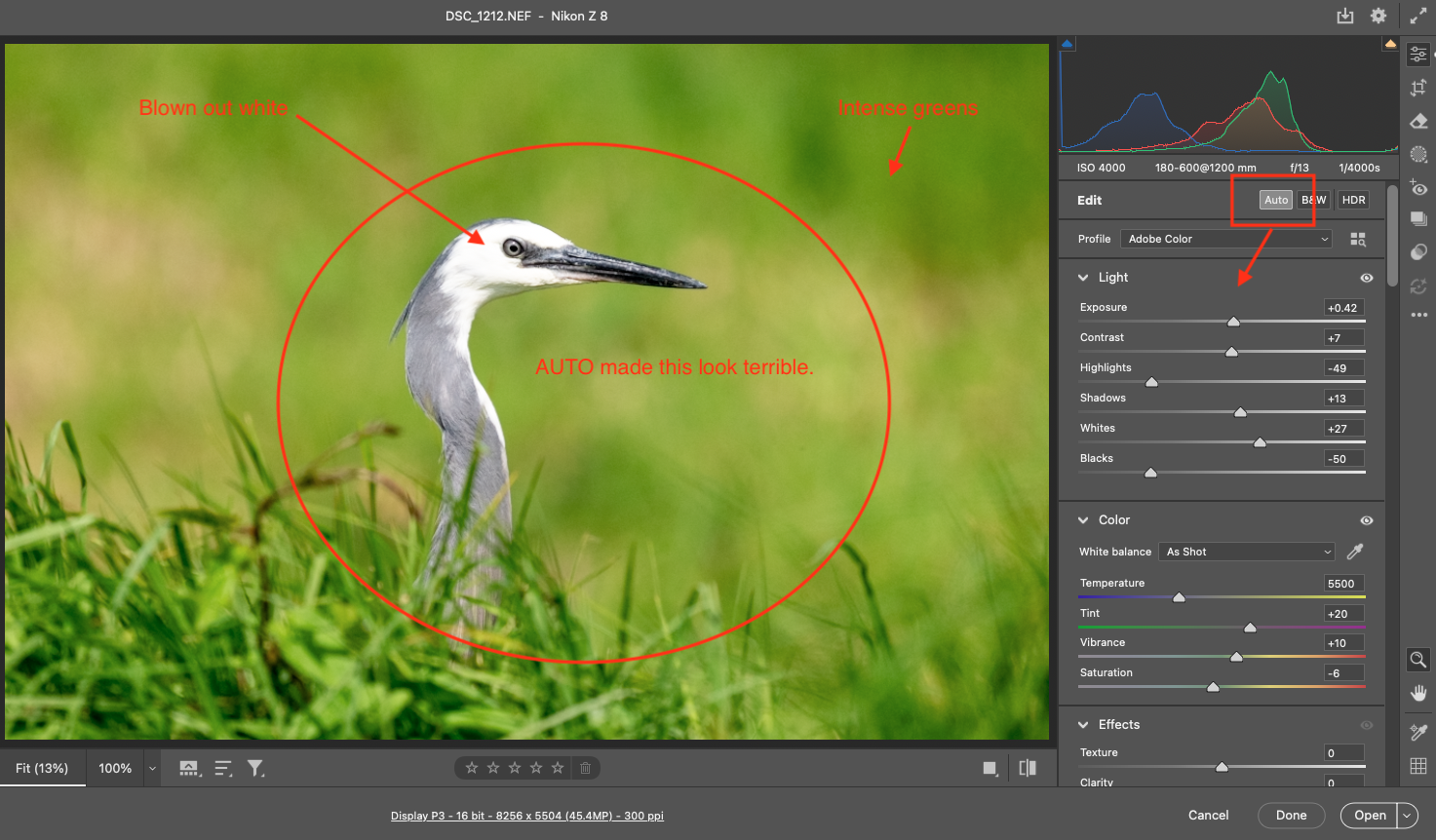
Light using AUTO
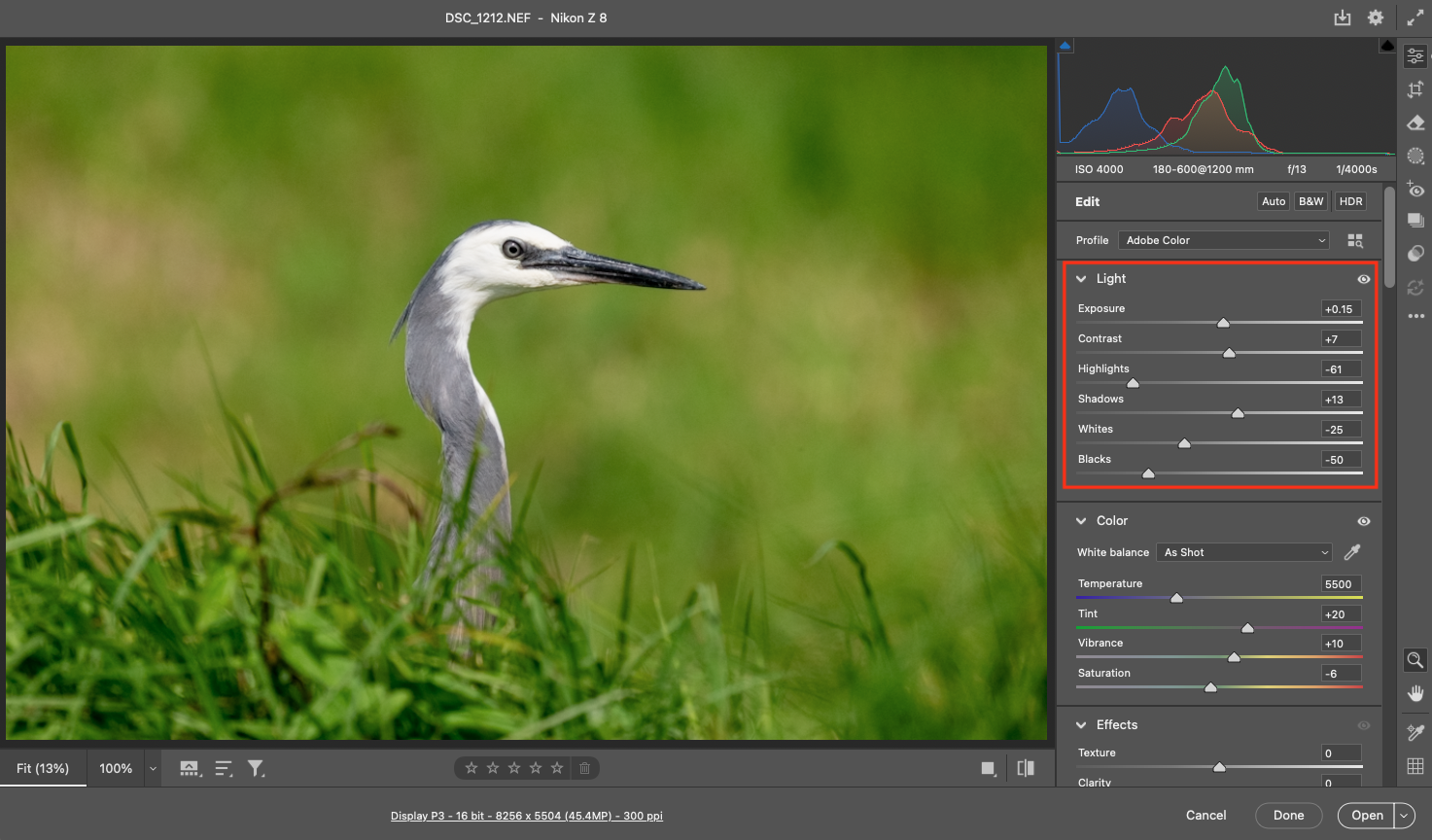
Light adjusted manually
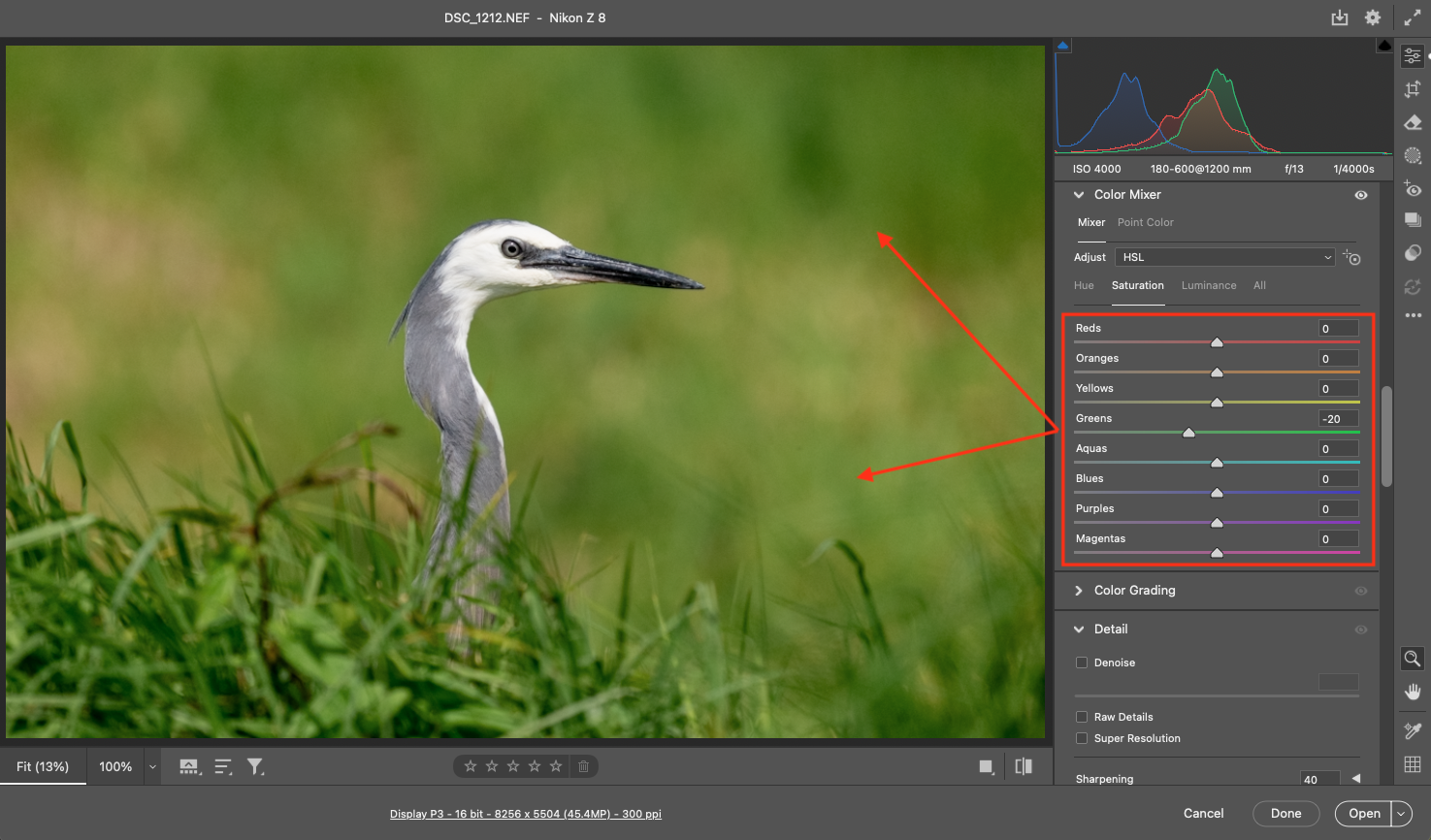
Colour adjusted manually
Defining the technical envelope: denoise and sharpening, once only.
If the image still holds up, I run denoise. This is a deliberate investment of time and processing power, which is why it only happens after the file has demonstrated basic viability.
Denoise is applied conservatively—just enough to resolve noise without erasing detail. This establishes the noise floor I am willing to accept.
Sharpening follows immediately. I apply a known baseline appropriate to my camera and lens files, then fine-adjust while watching for artefacts. Because sharpening inevitably introduces some noise, the two are balanced together at this point.
This step defines the technical envelope of the image. Once set, denoise and sharpening are not revisited. If later work makes me want to change them, that is treated as evidence that the image has been pushed beyond what the file can support.
Chromatic aberration and defringing are checked when high-contrast edges are present. Lens profile corrections are applied only when they matter—typically when straight lines are an important part of the subject, not by default.
At this point, the file is technically locked.
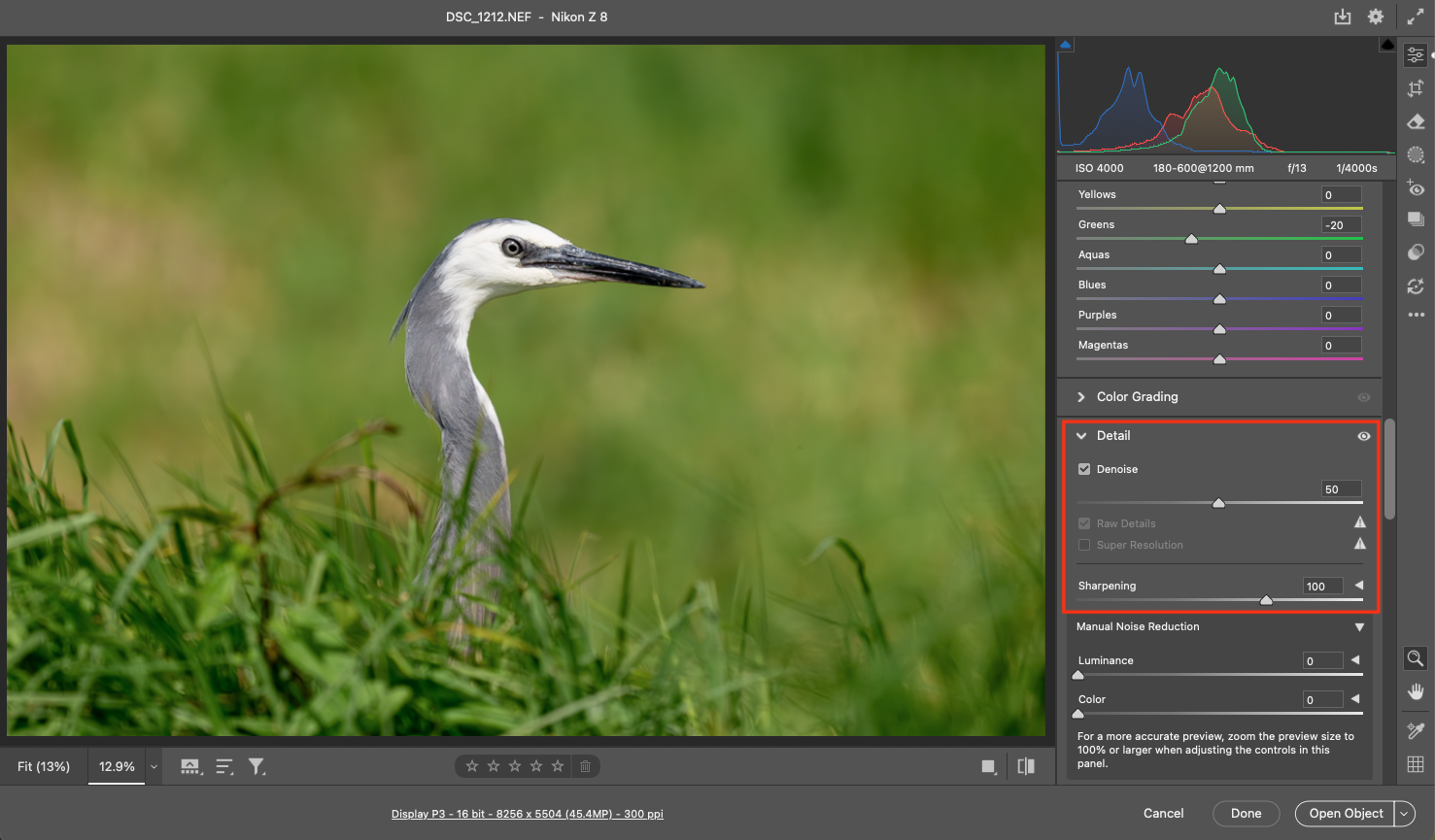
Denoise and Sharpening
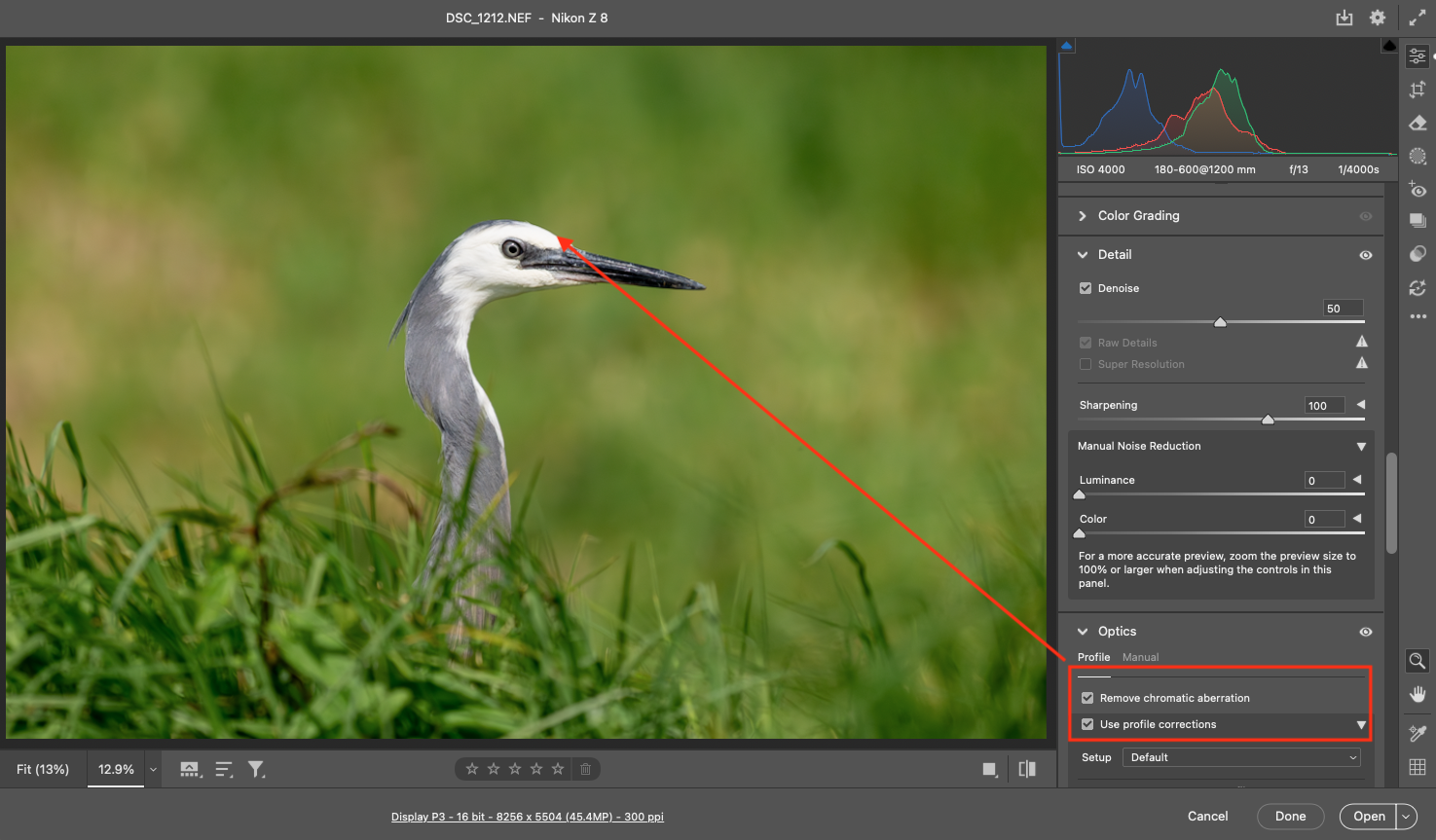
Chromatic Aberration or Defringe
What post-production actually fixes well:
Modern denoising tools, particularly in Adobe Camera Raw, are extremely effective at cleaning up moderate ISO noise. At ISO 3200–4000, noise is predominantly fine-grained luminance noise rather than aggressive colour blotching. This matters, because luminance noise is far easier to suppress without destroying structure.
With careful denoising—applied globally or selectively—noise can be reduced to the point where it is visually irrelevant in prints, web output, and even large displays. Crucially, this can be done without smearing edges or flattening tonal transitions when used conservatively.
In other words, the cost of moderate ISO is often lower than the cost of compromising exposure at capture.
When I first started trying denoising images with DXO4, my computer was taking >6minutes to process each image. If you experience similar, then your computing power is probably the issue. An investment in a MacBook M4Pro solved this.
I’ve also abandoned DXO4 because I have a suitable tool already right there in Adobe Camera RAW which I actually prefer.
Creative post-production: restrained and confirmatory.
Only after the technical envelope is set do I move into creative work.
This usually begins with dust and distraction removal, scanning for small eye-drawing elements and removing them where appropriate. Cropping or geometric corrections are applied if needed, followed by consideration of a vignette.
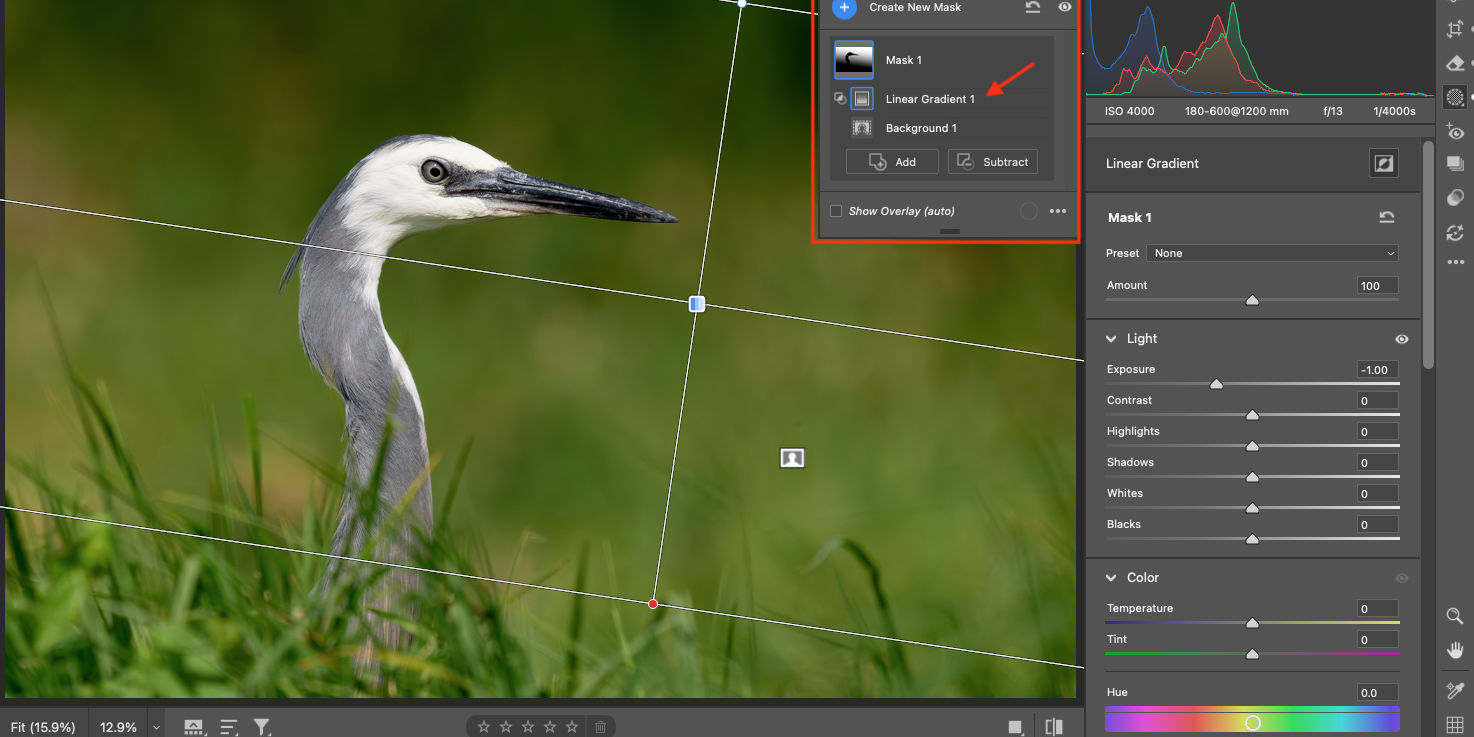
Masking is used sparingly to dodge or burn specific regions using light and colour controls. This is not exploratory work. By this stage, intent is already clear; masking exists to support it, not discover it.
In most cases, editing ends here. Photoshop is not the default next step.
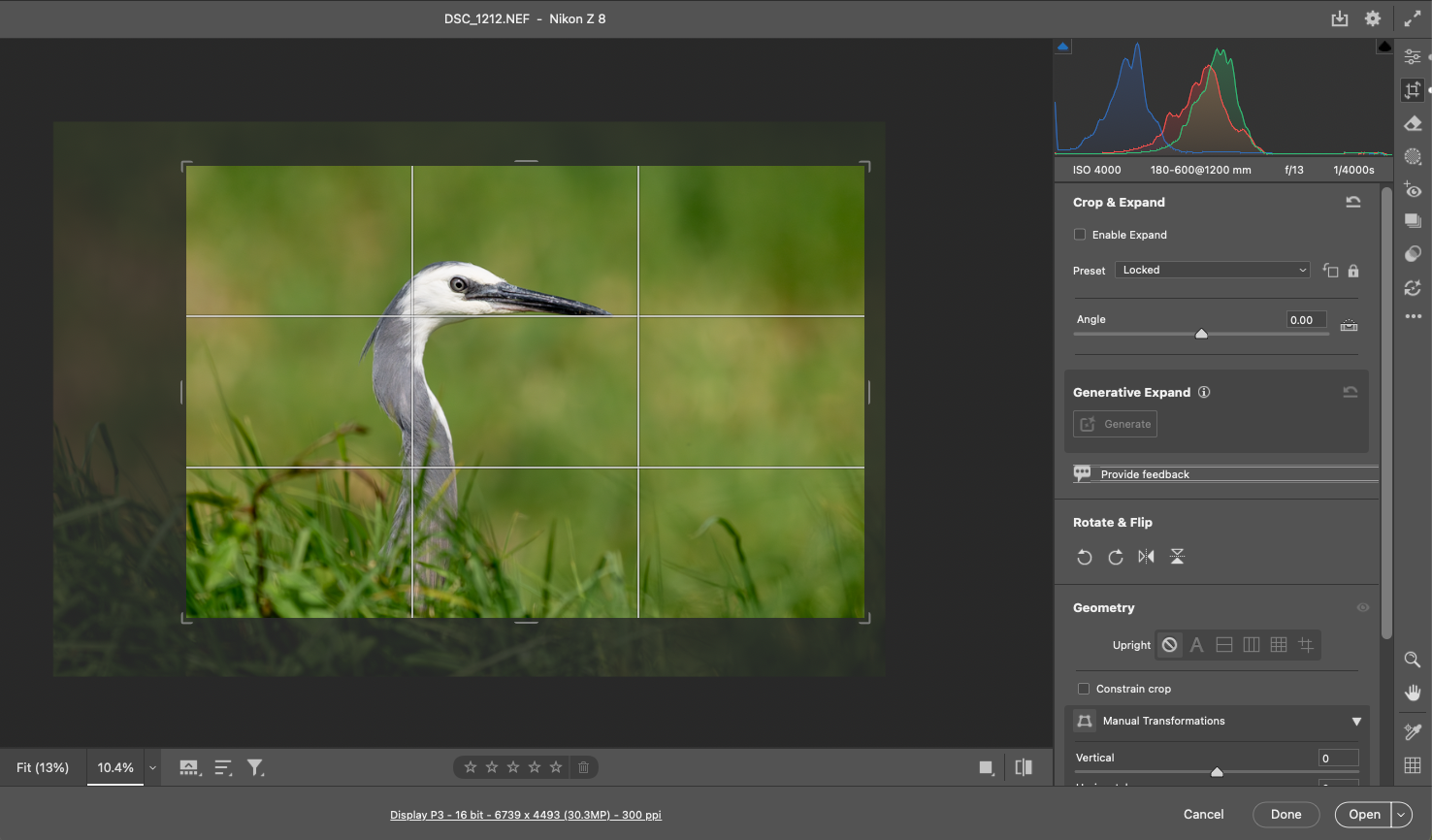
Crop or Geometry
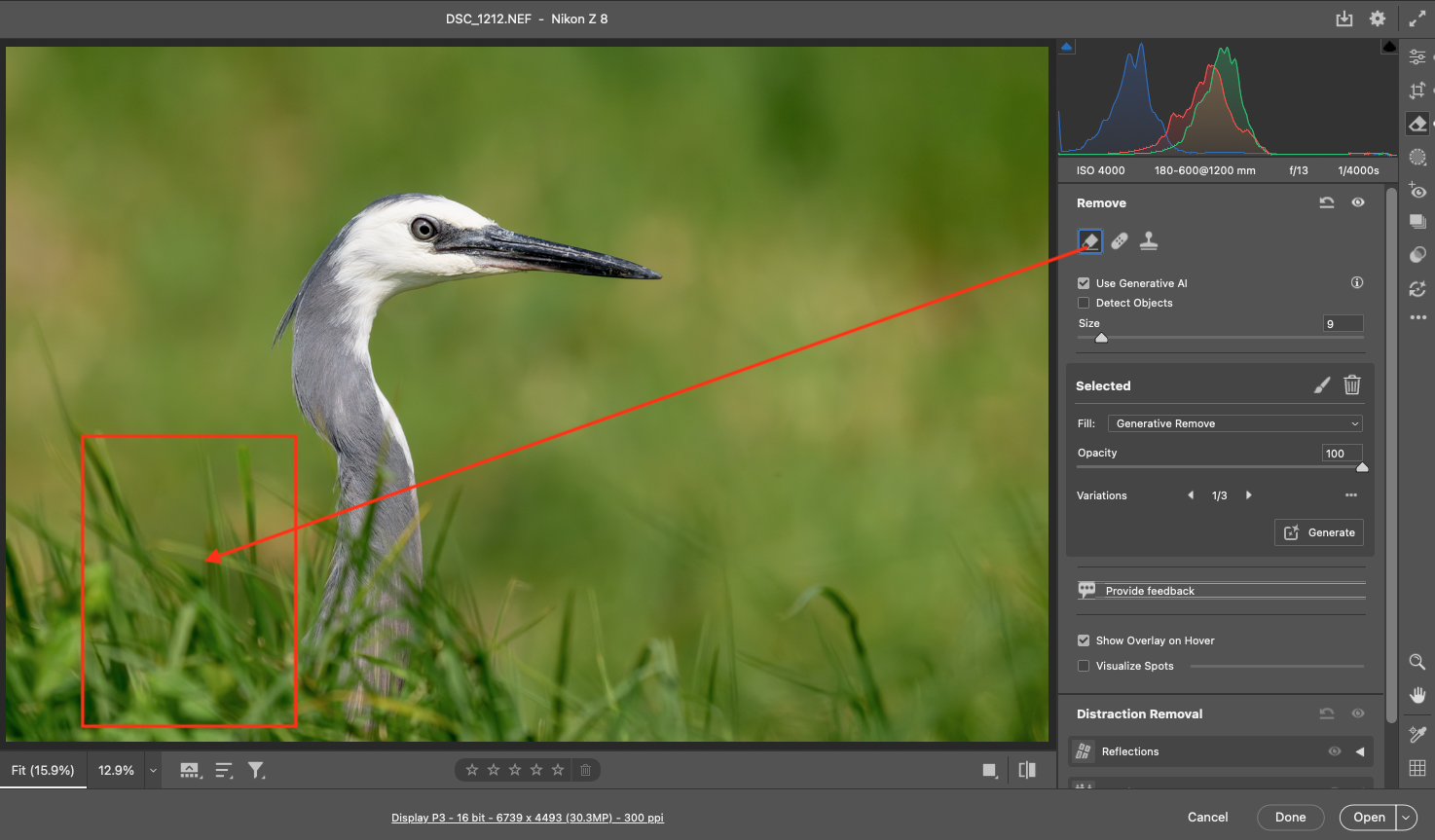
Distraction removal
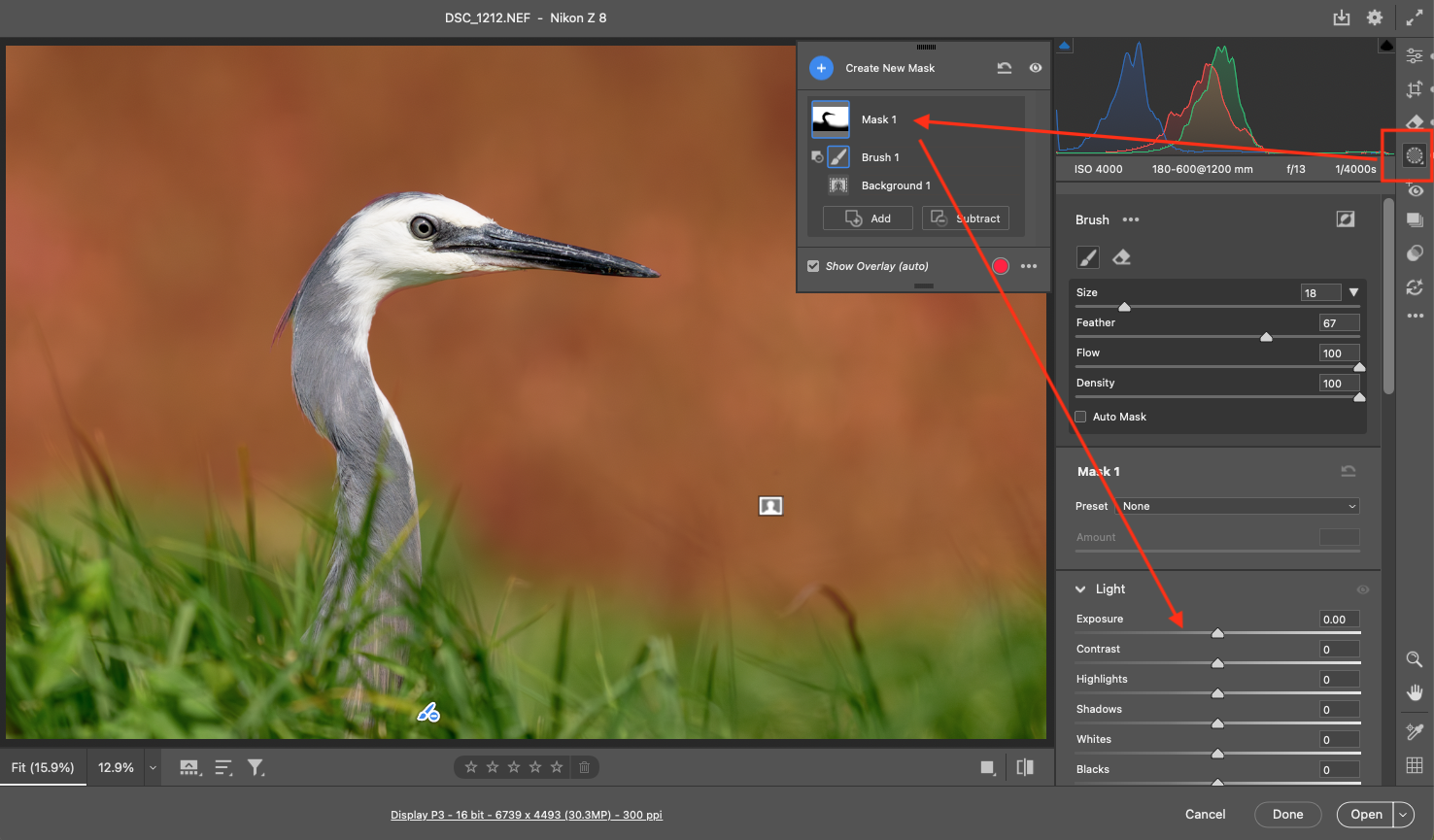
Mask selection
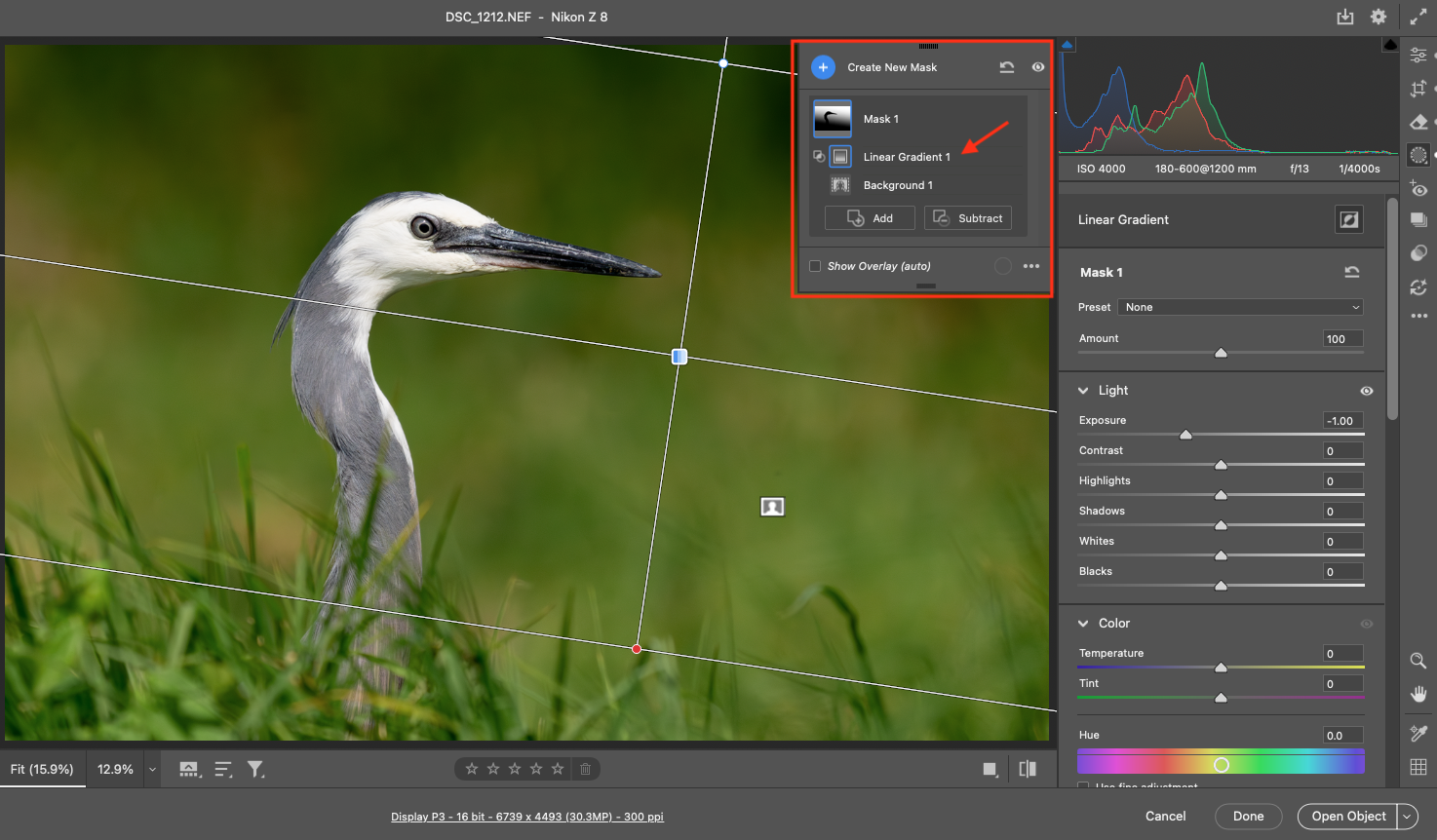
Masked adjustments
I will be writing an article soon that explains how I use Masking and finely tune masks to achieve certain effects or to better isolate or emphasise the subject.

Final cleanups. This image is not everyone’s taste and style – that doesn’t matter, it’s just an example and isn’t one of my favourites by a long way. What matters to me is showing you the thought-process and workflow. And the fact that I can get to this point within a few easy steps in Post, using just a few minutes per image, and without going into PhotoShop at all either.
Tools I almost never use, and why.
My editing almost never includes Texture, Clarity, Dehaze, or Grain.
These tools tend to destabilise noise and micro-contrast relationships that I have already deliberately resolved earlier in the workflow. Grain, in particular, makes little sense in a process where the noise floor has been consciously defined.
This is not a moral objection to these tools. It is a consequence of locking decisions early.
When Photoshop is actually justified.
Photoshop is used only when it provides a structural advantage that Camera Raw does not.
That includes repairing many small imperfections that are genuinely part of the subject (for example, dust caught in a bird’s feathers), situations where layers materially improve creative control, colour operations such as channel swapping (as with infrared work), or cases where the image clearly wants something ACR cannot reasonably provide.
If Photoshop feels necessary simply to rescue the image, that is usually a signal that the image should not have progressed this far.
Output discipline: exporting with intent, not convenience.
If you recall from above, there are images marked with either 3, 4 or 5 stars. At this point I make my final cull, if I think it’s warranted.
If I have plenty of 4 and 5 star images of the same subjects as those with 3 stars, then I will just delete the 3-star versions before this step. I’m now down to my final set of “keepers”.
Once a set of keepers are ready, I export everything via Adobe Bridge, using presets I have defined in advance. The master files remain as NEF files with sidecars, with the occasional PSD where Photoshop work was required.
Exports are always structured into three sub-folders:
- Screen resolution JPGs at 1920 × 1280
- 4K JPGs
- Full-resolution JPGs
All JPGs are exported with minimal compression to preserve quality.
These export sizes exist for different purposes, not as arbitrary variants. The lowest-resolution files are used for my website. The 4K images are used for social sharing. Full-resolution JPGs are reserved for competition entries.
If a batch of images is clearly not competition-worthy, I simply don’t generate the full-resolution folder. Optionality is removed deliberately.
If I ever want to print any of the final images, I’ll do that off the NEF (RAW) file opened in PhotoShop, and print from PhotoShop. That way the printed file is always the highest possible quality, not off a JPG.
Archival discipline: storage is the final gate.
When everything is complete, the entire folder structure, master files and exported subfolders, is moved to my NAS for long-term storage and removed from the laptop.
This is the final stop rule. Once archived, the work is considered finished.
I will only re-visit these files for sharing, or when I have learned something new that I think might have some significant impact on past images.
Because images live on my NAS system, they are easily accessible at home while on my network. But I can also access them from anywhere in the world via a NAS web interface, or via Google Drive where there is a backup of the files as well. Any changes made in one place: Drive; NAS for Web; or Home Networked NAS access; is synchronised across all access points within minutes.
Closing perspective.
This workflow is intentionally restrictive. It front-loads rejection, locks technical decisions early, limits the role of powerful tools, and enforces output discipline.
The aim is not to maximise keepers. It is to avoid lying to myself about what a file can support.
When an image survives this process, it does so honestly.
Key Takeaways:
Why do you apply denoise and sharpening first in Adobe Camera Raw?
Denoise and sharpening are structural corrections, not creative adjustments. Applying them first establishes a stable baseline so all later tonal, colour, and contrast decisions are made on a clean, consistent image. Revisiting them later risks compounding artefacts and undermining earlier decisions.
Why don’t you revisit sharpening or denoise later in the workflow?
Once denoise and sharpening are set, changing them later alters edge contrast and micro-detail, which can invalidate earlier tonal and colour work. Locking them early prevents circular editing and forces discipline in the rest of the workflow.
How does this workflow differ from common online advice?
Many workflows recommend sharpening last, treating it as a finishing step. This approach instead treats sharpening and denoise as foundational corrections, separating technical image conditioning from creative interpretation and reducing the temptation to “fix” problems late in the process.
Is this workflow about maximising sharpness and detail?
No. The goal is consistency and control, not maximum perceived sharpness. The workflow prioritises natural edge behaviour and avoids aggressive detail enhancement that can introduce halos, texture exaggeration, or brittle tonal transitions.
Who is this Camera Raw workflow best suited for?
It suits photographers who value repeatability, subtlety, and long-term consistency across bodies, lenses, and shooting conditions. It is especially appropriate for landscape, architectural, and fine-art work where restraint and tonal integrity matter more than punch.